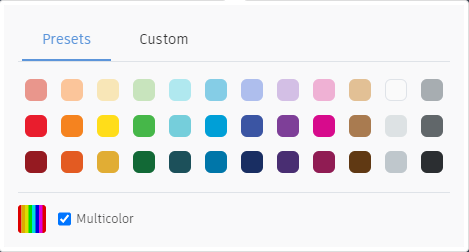
In the Modify menu, choose Create New Object.
Drag-and-drop it into the code space.
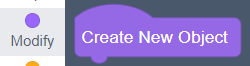
Click on the ⛛ arrow next to object0 to open its menu.
Click Rename variable....
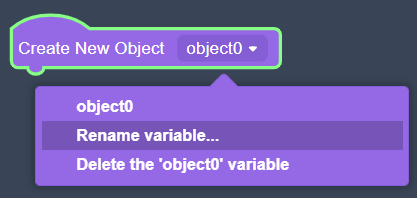
A popup will appear. Type your new variable name (we chose body) into the box then click OK.
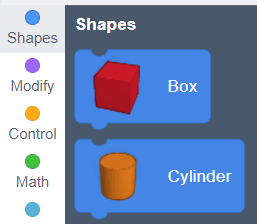
In the Shapes menu, choose Cylinder.
Drag-and-drop it into the code space, and connect it underneath your Create New Object block.
On the top right of your screen, there is a set of options to run your code.
Speed has a slider, to change how quickly it runs.
Next to the slider is a ▶ Play button. Click this to run your code.

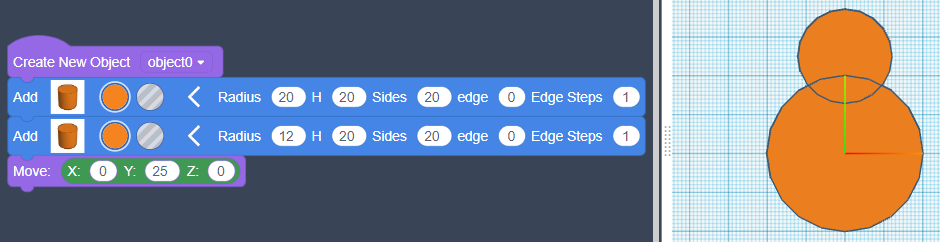
If your code runs successfully, you will see an orange cylinder on the workspace on the right.
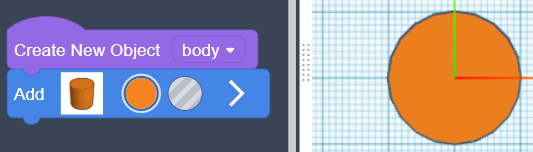
Click the 〉 arrow at the end of the Add cylinder block, to see more options.
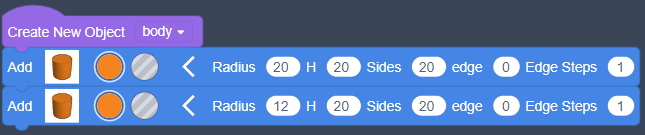
Edit the first number, labelled Radius, to make the cylinder smaller or wider.

Add a second Cylinder underneath the first one, and adjust the radius if you want.
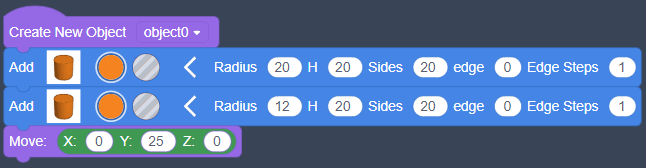
From the Modify menu, find the Move block. Add it underneath your new shape.
Changing X will move it left and right. Z will move it above the other shapes, to make it 3D.
The number you should change is Y, to move it to the top of the first shape.
Run your code to check it.
From the Modify menu, find Create Group. Add it to the bottom of your code.
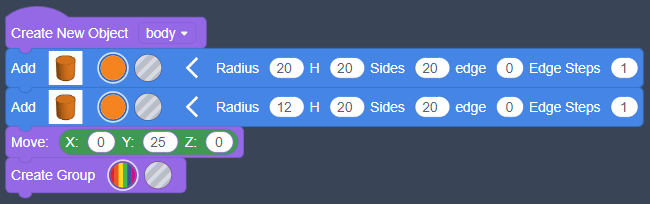
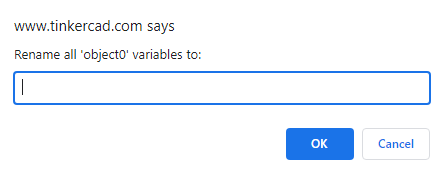
Click the multicoloured block, and choose a colour for your finished object.
This helps you to see easily which parts of the design you have finished.