
Resources for the 'Lucky Dice' Creative Computing Club.
During this workshop, you will create electronic dice with a BBC micro:bit.
This page recaps what we discussed as a group.
To skip to the examples and ideas, click here.
Open the Python editor on your computer, and copy-and-paste the code below to set up your file (if you are at our in-person workshop, this will have been done for you already).
Replace the code on the screen with this:
# Imports go at the top
from microbit import *
from random import randint, choice
import music

# Code in a 'while True:' loop repeats forever
while True:
  display.show(Image.HEART)
  sleep(1000)
  display.scroll('Hello')
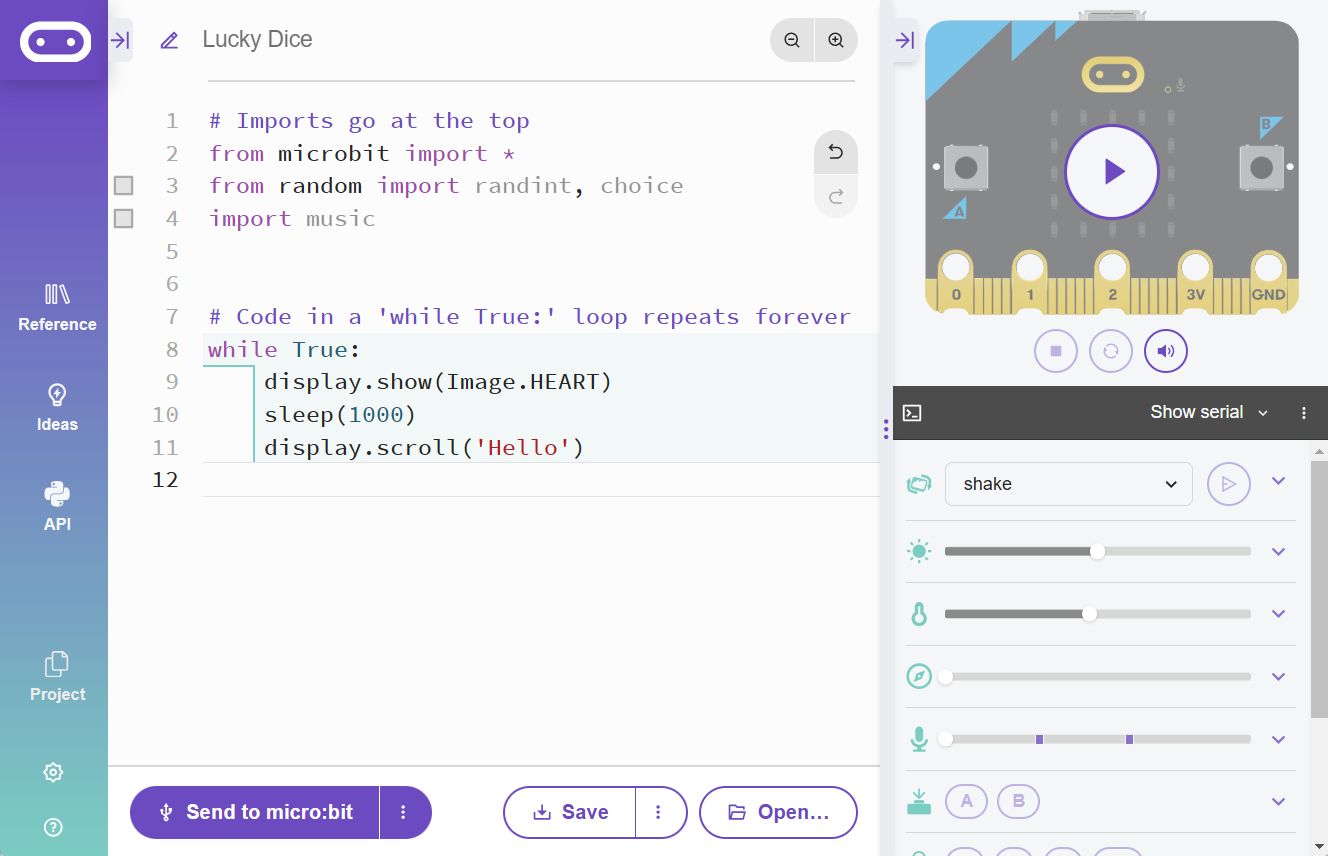
Plug your micro:bit into the computer, then click Send to micro:bit. Follow the pairing instructions that pop up.
Some code should be running on your micro:bit!
If you get a message scrolling across the micro:bit's screen, this is an error message!
Debug your code, then click Flash again to test your changes.
Once your code is working - change it!
Image on the micro:bit's display?sleep really large or really small?If you get an unexpected message on the micro:bit, you have found an error message! Try to debug your code - the Editor can be helpful here, look out for some red dots.
When you roll a die, you don't know what number is going to come up.
To add this feature into our program, we need to use the random library.
This has already been imported into your program, with this line:
from random import randint, choice
For now, we will use randint, which means create a random integer (whole number).
Edit your code so that instead of showing an Image on the micro:bit's display, you show an integer.
display.show(5)
To make your dice easier to use, delete the line of code that scrolls your message.
You could also move it to the start of your code, above yourWhile True loop, so that it only runs once at the start of your programme.
Now we want to simulate the rolling of the die - by using a variable called roll, and setting this to a random integer.
Add this into your code above display.show().
roll = randint(1, 6)
Finally, change your display.show() line, so that the value of the variable is shown instead.
Your code should now look like this:
while True:
  roll = randint(1, 6)
  display.show(roll)
  sleep(1000)
Test it out - send the code to your micro:bit and see what numbers you get.
Right now, the micro:bit rolls by itself - but you can choose when to roll it.
Between while True: and roll = randint(), add this new line:
if accelerometer.was_gesture('shake'):
Indentation is Python's way of knowing when things should happen - it is like slotting code inside other blocks in Scratch - look at the code example below and see how the lines line up on the left.
while True:
    if accelerometer.was_gesture('shake'):
        roll = randint(1, 6)
        display.show(roll)
        sleep(5000)
If you would like the number to be cleared from the screen when you are not rolling, expand the code like this:
        ...
        sleep(5000)
    else:
        display.clear()
Challenge! Can you make the micro:bit roll when you press a button instead? The syntax you will need is:
button_a.was_pressed()
To use your own images, you will need to do these steps:
listrandom choice syntax to pick oneTo design your own images, you choose which of the individual lights - pixels - on the front of the micro:bit that you want to turn on, and how bright to have them.
Use this worksheet to help you.
Create six images, one for each number, and put them in your code above your while True loop.
Make sure you test your images to make sure you are happy with them.
After adding your images, on the next line down, you will create a list of all your images, to group them together.
Python syntax for a list is like this:
numbers = [one, two, three, four, five, six]
You name your list, then use square brackets to contain everything inside.
Find the line that is already in your code that looks like this:
roll = randint(1, 6)
You are going to change this to choose from the images in your list instead, by using this code:
roll = choice(numbers)
Where numbers is the name of your list.
What happens if you run your code now?
You next line after this says:
display.show(roll)
So the micro:bit is looking at the string of numbers you gave it, e.g. '00000:99999:00000:99999:00000' and putting them all on the screen!
You need to edit this line to let the micro:bit know that it is an image:
display.show(Image(roll))
Test it!
Do you get any error messages? Try to debug step by step.
If you get stuck, look at our code here.
The micro:bit has lots of ways to expand your code - explore the Reference menu for some ideas.
There are also some ideas in the links below.