
CCC - Code your own Shadow Puppet Theatre
Resources for the 'Code your own Shadow Puppet Theatre' Creative Computing Club.
During this workshop, you will use a BBC micro:bit to control addressable LEDs (Neopixels), to make your own programmable shadow puppet theatre.
This page recaps what we discussed as a group.
Instructions to make your own Shadow Theatre at home.
Coding a micro:bit in Python
Open the Python editor by visiting python.microbit.org/. Your screen will look something like this:
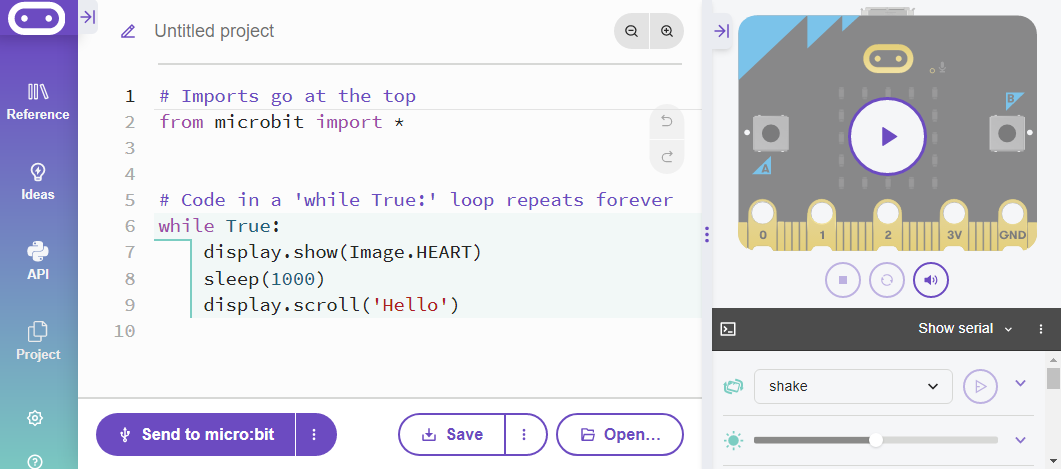
- In the middle is where you will add your own code.
- On the left-hand-side is the reference menu - you can see examples of some of the code here, as well as help understanding these examples.
- On the right-hand-side is the simulator - a pretend micro:bit you can use to test your code.
- On the bottom is the Send to Micro:bit button, which you will use to send code to your physical micro:bit.
Edit the code on the screen, then flash it to your micro:bit to see the changes.
Try:
- Editing the
Imagethat is shown (hint: check the reference menu, under Display, for a list of images) - Changing the number in the brackets after
sleep(hint: this tells the micro:bit how long to keep your image on the display) - Making the micro:bit scroll your name instead of
'Hello'
Set-up code: if you are in our workshop, the following code will be in your program already. It is needed to make the later things work, and we will explain it as we go through.
If you are not in our workshop, copy and paste all of these lines into the top of your project:
from microbit import *
import neopixel
import music

lights = neopixel.NeoPixel(pin16, 10)

red = (100, 0, 0)
green = (0, 100, 0)
blue = (0, 0, 100)
white = (100, 100, 100)
Wiring your Neopixels
Neopixels are special LEDs connected together - you can program them all seperately from only one pin of the micro:bit!
They come in lots of shapes and sizes; if you are Science Oxford's workshop, a strip of 10 are attached to the inside of your shadow theatre.
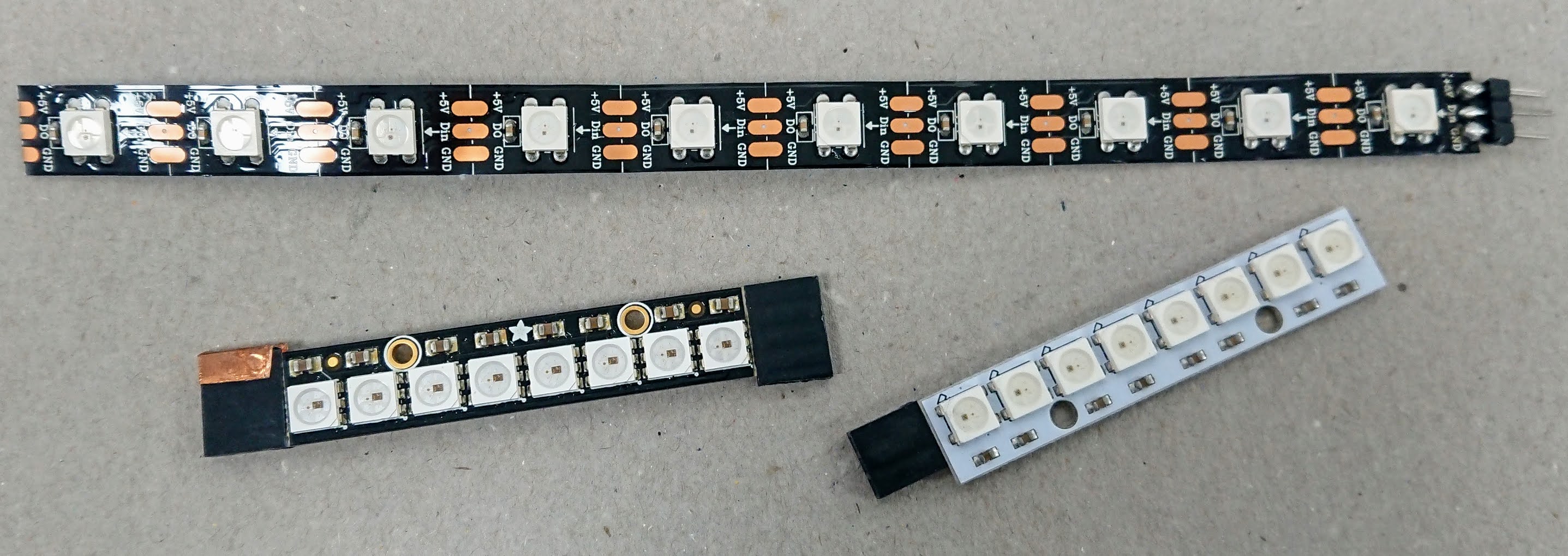
Neopixels have three connections:
- Ground / GND / - : connect this to the micro:bit's GND pin
- Data / Din : connect this to the micro:bit's pin0
- Power / 5V / + : connect this to the micro:bit's 3V pin
In our workshop, they are wired up to a micro:bit edge connector. Slot your micro:bit into the connector, with the display facing up.
Turning on you Neopixel stage lights
To use the Neopixels as your stage lighting, we have written some set-up code for you. The most important line is this one:
lights = neopixel.NeoPixel(pin16, 10)
This says that you have connected them to pin16, and that there are 10 pixels in the strip. If this is not true, you can change these options.
Add the following code into your program (above while True) and test it:
for i in range(0, 10):
    lights[i] = red
    lights.show()
This code does the following things:
- Loops around every pixel in the strip, one at a time.
- Sets that pixel to red
- Turns that pixel on
Choose a 'puppet' and test out your shadow theatre.
What colour best represents the puppet you have chosen? Is it a hero or a villain?
Need some story inspiration? Try our Random Story Generator!
To get a random story, leave all the boxes blank.
Fill in any of the boxes to add your own ideas.
Edit the code for this scene of your play.
- Can you change the colour of the lights?
- Can you add a sound effect or musical tune, either before or after the lights turn on?
Left lights, right lights, middle lights...
Instead of turning all of your lights on the same colour, you can split them into sections.
In this code example, half of the lights are red, the other half are white:
for i in range(0, 5):
    lights[i] = red
for i in range(5, 10):
    lights[i] = white
lights.show()
The two numbers in the range method, are the pixel it starts from, and the final pixel it should find before stopping - it does not run the code on this one.
This is why pixel 5 is in the code twice - in the first range, the code stops before 5.
Think about how you could use this as part of your story
- Two characters, each with their own lighting?
- Using light to show where a character should move to?
Example scenes
'''
SCENE 1:
'the rabbit walked towards the spooky castle'
'''
display.show(1)

# lights
for i in range(0, 5):
    lights[i] = red
for i in range(5, 10):
    lights[i] = white
lights.show()

# sound
music.play(music.BADDY)

# pause for narration
sleep(4000)
'''
SCENE 2:
'the castle vanished, and the rabbit was very confused'
'''
display.show(2)

# lights
for i in range (0, 10):
    lights[i] = blue
lights.show()

# pause for narration
sleep(5000)
Adding more colours
So far, we have used 'red' 'green' 'blue' and 'white'. They have been defined using variables, so that you can use the name instead of the numbers that make them.
Each number has a format like this:
colour-name = (red-amount, green-amount, blue-amount)
The colours can be mixed to make different colours, e.g.
yellow = (100, 100, 0)
Use an online colour picker, like this one from w3schools.com, to find the RGB values of your favourite colours.
Choose two or three to start with, and make them into variables. Remember to test them by telling the lights to turn on to that colour!
Next steps
Design your play, using lights, sound effects and your chosen characters.
You can use our scene planner to help you.
Create your scenes one at a time, and test them before adding the next one.
You could also...
- Create your own shadow puppets using using card and lolly sticks.
- Add introduction and ending scenes, with music and lighting effects.
If you are already familiar with Python and micro:bits, and want to challenge yourself...
- Write your own Python functions to make your code more efficient.
- Use the micro:bit's buttons to control when things happen.
Some code examples are here: