
Add New Fonts
These instructions show you how to add fonts into your project.
These instructions show you how to add fonts into your project.
Your computer has lots of fonts installed, but not every computer will recognise the same fonts.
By linking to an online font, you can make sure that anyone who reads your story will see what you want them to see.
Visit fonts.google.com, and look through the available fonts.
When you find one that you like, click on it. You should see a screen like the below picture.
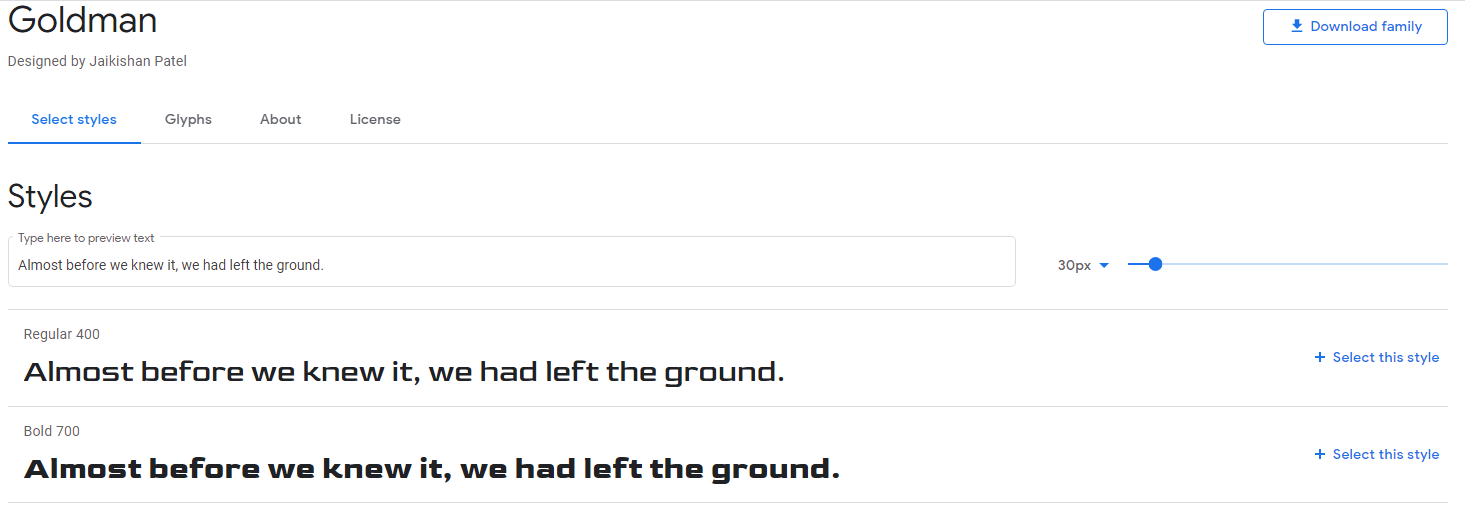
Choose the style that you want to use in your project, then click + Select this style on the right hand side.
A sidebar will show up, showing you the information you need to use this font in your project.
Click @import instead of <link>.
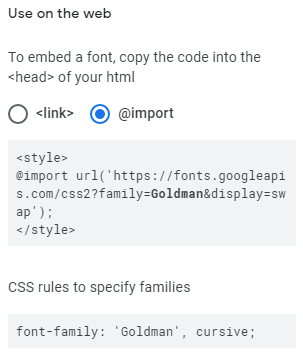
Do not close the web page with your font, but go back to Twine.
To change the font, and other formatting, you need to Edit Story Stylesheet, which can be found in the menu next to the story title on the bottom left.
At the top of your Stylesheet, before any of the other code, make a new line. This is where you will add the link to the font.
Copy and paste part of the first bit of code from your font information into this place. From @import to the semi-colon, do not include the top and bottom <style>.
Now you need to decide where you want to use this font - for your whole story, for the paragraph text, or the links?
Copy and paste the second bit of code from your font inside one of your sets of curly brackets.
@import url('https://fonts.googleapis.com/css2?family=Goldman&display=swap');

tw-story {
  background-color: #fcba03;
  font-family: 'Goldman', cursive;
}
The example code above will import the font 'Goldman', then change the background colour and the font of all of the text.
You can import as many fonts as you like, to use in different parts of your story.