
Add Pictures to your Story
These instructions show you how to add pictures into your project.
These instructions show you how to add pictures into your project.
When choosing pictures, it is important to make sure that you have permission to use it, and it is always a good idea to thank whoever created it (if it does not belong to you), for example with a link to the website!
By using the link below to search for pictures, you will make sure that you only find images that are Copyright Free, so you have permission to use them for education purposes.
If you want to create a project to share online with people other than your family, you will need to be even more careful about how you choose your images.
Remember, do not include any photos of yourself or anyone you know in your story, as you will be sharing it with the other club members during the workshop!
Twine does not allow you to directly place images into your story - you need to link to it.
Find a picture you like by searching online.
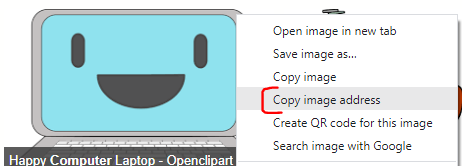
Right-click on that image and select 'Copy image address'.
Visit imgbb and click Add image URLs.
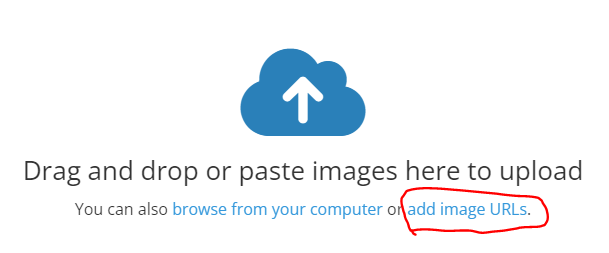
Paste the image link into the box that pops up, then click Upload.
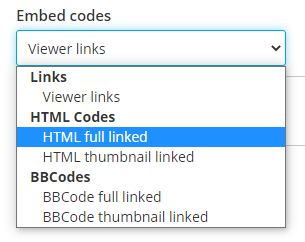
Once the image has successfully uploaded (this might take a little while if it is a large picture!), change the Embed codes to HTML full linked
Go back to Twine, and open the passage in which you want to put your picture.
Copy and paste the entire line of code from imgbb into the passage - if you put it below your text it will be placed afterwards.
You arrive at Science Oxford's Creative Computing Club workshop and notice that something isn't right...
Instead of a laptop on each desk, there is a strange square box!
[[Prod the box]]
[[Go and look for help]]


<a href="https://imgbb.com/"><img src="https://i.ibb.co/rb0dcQ2/images-q-tbn-ANd9-Gc-Tx88-VEZt-KVd0r-Pi5-MXs-AH5-Do-C71-R99m-NBUYLVwk8p-GVsw6-Rc-s.png" alt="images-q-tbn-ANd9-Gc-Tx88-VEZt-KVd0r-Pi5-MXs-AH5-Do-C71-R99m-NBUYLVwk8p-GVsw6-Rc-s" border="0"></a>
The example code above adds an image of a computer to the bottom of my story's first paragraph.
Once you have tested your story, to see what your picture looks like, you might want to change the size. You can do this by writing some extra code.
The line of code that imgbb gives you has a few different parts to it:
<a... creates a hyperlink - if your reader clicks on the picture, it will open the picture in their web browser.<img... begins the HTML instruction to display the image, and has more sections within it!src=... is the source of the image - where it is stored online.alt=... is the alternative text of the image - this will be displayed if the image is missing or cannot be displayed, and is used by screen-readers to describe the image to blind and partially sighted people. Write a good description of your image to help those who cannot see the picture to understand your story.border=... is the size of the border around the image (currently no border!).After border="0", and before the closing bracket ></a>, you can add additional information to help display your image.
There might be extra code at the end, which starts with <br> - you can delete this part.
Try width="200px" height="auto" to set the width of the image to 200 pixels wide. Keeping height as auto, means that it will scale the image so that the height matches the width, and doesn't get squashed or stretched.
<a href="https://imgbb.com/"><img src="https://i.ibb.co/rb0dcQ2/images-q-tbn-ANd9-Gc-Tx88-VEZt-KVd0r-Pi5-MXs-AH5-Do-C71-R99m-NBUYLVwk8p-GVsw6-Rc-s.png" alt="images-q-tbn-ANd9-Gc-Tx88-VEZt-KVd0r-Pi5-MXs-AH5-Do-C71-R99m-NBUYLVwk8p-GVsw6-Rc-s" border="0" width="200px" height="auto"></a>