
Resources for the 'Moon Buggies' Creative Computing Club.
During this workshop, you will program robot buggies to collect 'moon rocks'.
This page recaps what we discussed as a group.
To skip to the examples and ideas, click here.
Click here to find the starter program, with the imports ready.
Open the Mu editor on your computer. If there is code on the screen, start a New program from the menu.

Type these lines of code into your blank window:
from microbit import *
import radio

display.show(Image.HAPPY)
Plug your micro:bit into the computer, then click Flash:

Some code should be running on your micro:bit!
If you get a message scrolling across the micro:bit's screen, this is an error message!
Debug your code, then click Flash again to test your changes.
Once your code is working - change it!
Instead of HAPPY, can you think of another Image the micro:bit could show on its display?
If you are in Science Oxford's workshop, your robot is named after a current astronaut, and has a number.
Look at the information on your table to find out more about your astronaut, and find out what number they are - this is your radio channel number.
Add the below code to your program, between import radio and before display.show():
radio.on()
radio.config(channel=0)
Edit the channel number to be your robot's number!
Flash your code to your micro:bit, and check for errors.
Click the 'REPL' button on Mu's menu, this will open a terminal at the bottom of your screen.
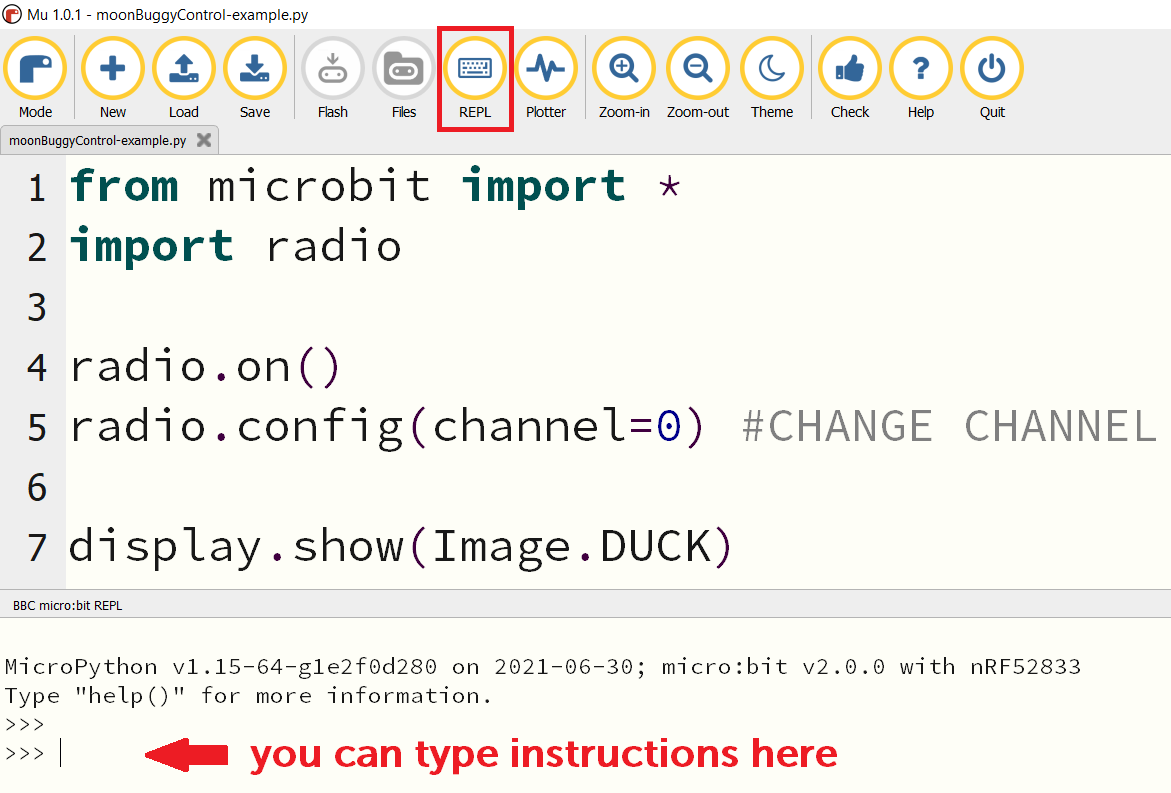
Turn your micro:bit over and click the Reset button on the back (between the USB socket and the white battery socket).
You can now type commands directly into the terminal, to interact with your micro:bit. Try this:
>> display.show(Image.YES)
Does your micro:bit's display change?
Now try to send a message to your robot on the moon:
>> radio.send('forward 500 500')
Did your robot move? Check for error messages in the terminal, and try again.
forward and each numberPractice driving your moon buggy by combining these commands:
forward, backward, left, right 1023 10000 (10s)You probably noticed that your robot doesn't obey your commands immediately.
Information takes approximately 1.255 seconds to travel from Earth to the Moon, so if you were really sending commands one at a time to a robot on the Moon, then there would be a delay.
Scientists always test everything out on Earth before sending things to space, as testing is much easier this way!
For the rest of the workshop, you can turn this delay on and off, to make the robot behave as though it is on the Moon or on Earth, depending on what you are doing.
Send this command using the terminal to remove the delay:
radio.send('earth')
What do you think you could send to put the buggy back on the Moon?
Your robot has a grabbing claw on the front - this can open and close to varying amounts to help you collect moon rock samples to bring back to base camp.
 >> radio.send('grab 6')
 >> radio.send('grab 1')
The grabbers have 6 position options - 6 is fully open, 1 is fully closed.
Test it out - what options work best for the moon rocks?
Can you successfully transport moon rocks around the surface?
Typing every command in one at a time is really slow.
Now that you have practiced with the moon buggies, you know which commands you use most often - you can shorten what you need to write to make this happen, by using functions.
A function is like a recipe - you teach the micro:bit a set of instructions and give these instructions a name. Then you just need to use the name, and the micro:bit knows what to do.
def do(message):
    radio.send(message)
The function allows you to replace radio.send with do:
 >> do('forward 500 500')
 >> radio.send('forward 500 500')
This saves you 8 letters of typing each time, which adds up to a lot when you are sending lots of commands.
How it works:
def is short for 'define', it means you are creating your functiondo and it takes an argument called messagedo() will have the function's instruction applied to it do('forward 500 500') 'forward 500 500' is sent over the radio.def grabber1():
radio.send('grab 5')
sleep(10)
radio.send('forward 500 1000')
sleep(10)
radio.send('grab 2')
sleep(10)
We can now use just one command in the terminal to send three radio messages at once:
>> grabber1()
This one instruction will open the grabber, drive a small amount forward, then close the grabber again - hopefully picking up a moon rock!
sleep(10) between each instruction to slow the messages down - too many at once can cause a memory error!