
You can use the volume block in the Music menu to set the volume.
By creating a variable to keep track of the current volume, you can add the ability to control it!
The instructions below will help you to use the micro:bit's buttons to control the volume.
Take a look in the Music menu, at the volume block.
The value given in this block is 127, which is in the middle of the range.
Click the Variables menu, and Make a Variable.
Give it a name, for example sound.
Now, in the Variables menu, you should see a round block with the name of your variable.
You can now combine these blocks, so that the volume will always be set to the sound you want, even when you change it.
Use an on start block, a new forever block, your new variable, and the volume block. See the example code below.
This will set up the volume, ready for you to start controlling it.
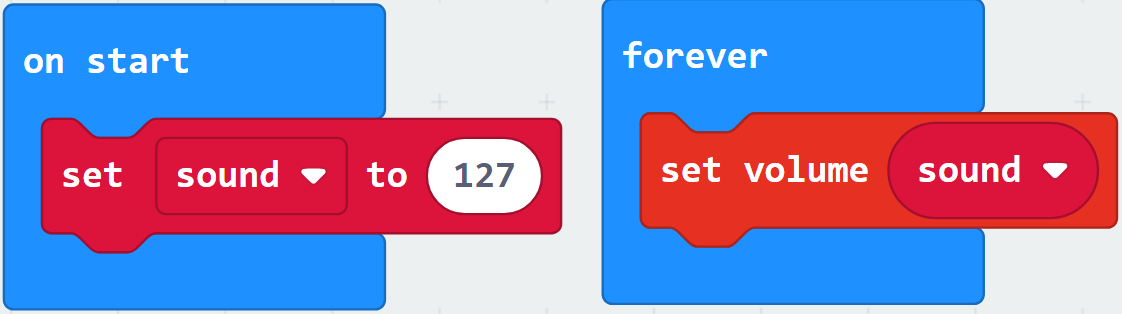
Check that your program still works before moving on to the next step!
The new forever block you started in the last step tells the micro:bit to set the volume.
Underneath this block, but still inside the forever loop, connect an if-then block, the same as you used when setting up the accelerometer.
Use the Inputs menu to set options for each button press.
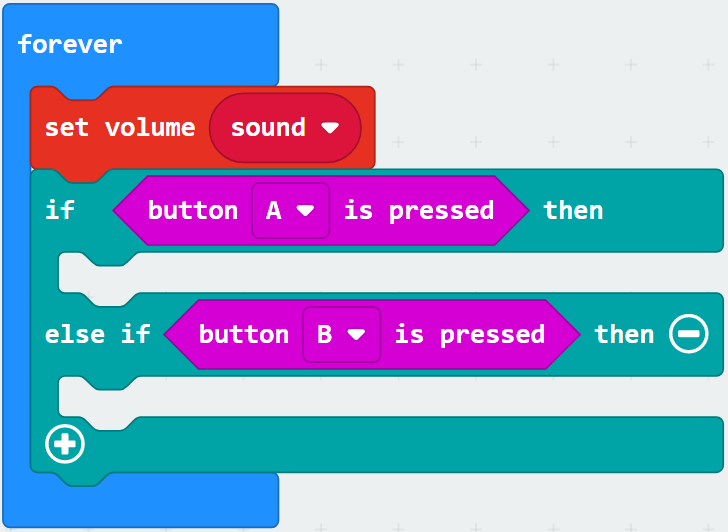
Next, use the Variables menu to fill in the gaps - there is a block called change sound by.
What value do you want to change the sound by?
Remember that at the start of the program it is 127. The lowest you can go is 0, which would be off. The loudest you can go is 255.
0, or make it louder than the maximum? Could you give your instrument's player some information to let them know?