
If you want more choices in your game, there are two sections of code to edit.
Your changes will effect what the micro:bit does in the game, and also what the player has to do!
Find the section in your code that controls what the micro:bit does.
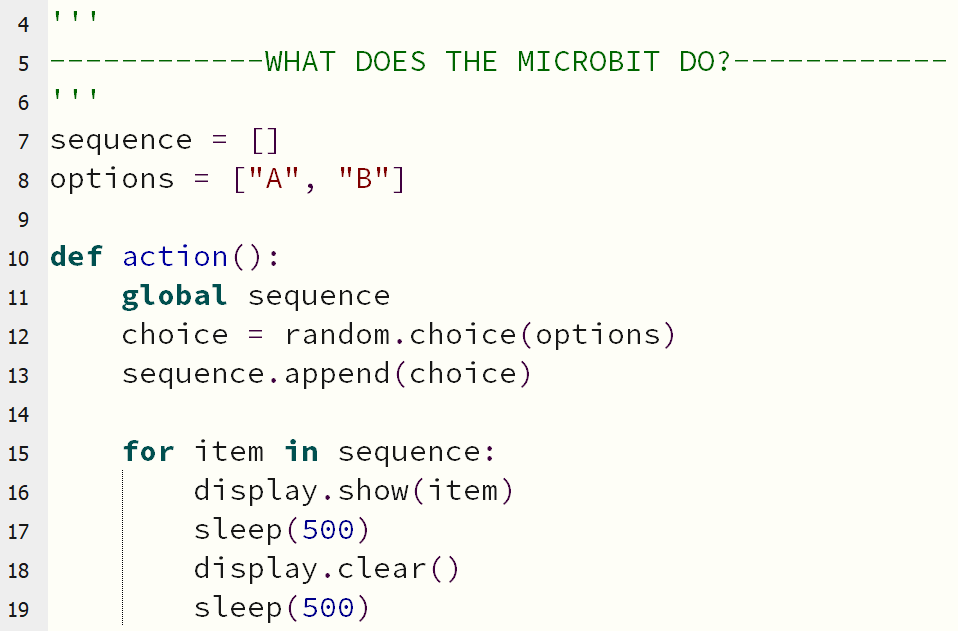
Near the top of this chunk of code, is the list of options the micro:bit has to choose from:
options = ["A", "B"]
Make this list longer, by adding extra things inside the brackets.
If you want to use musical notes, make sure you only add letters of real musical notes to the options!
The micro:bit will now show more options, so the player needs a way to repond to them!
Find the section in your code that controls what the player should do.
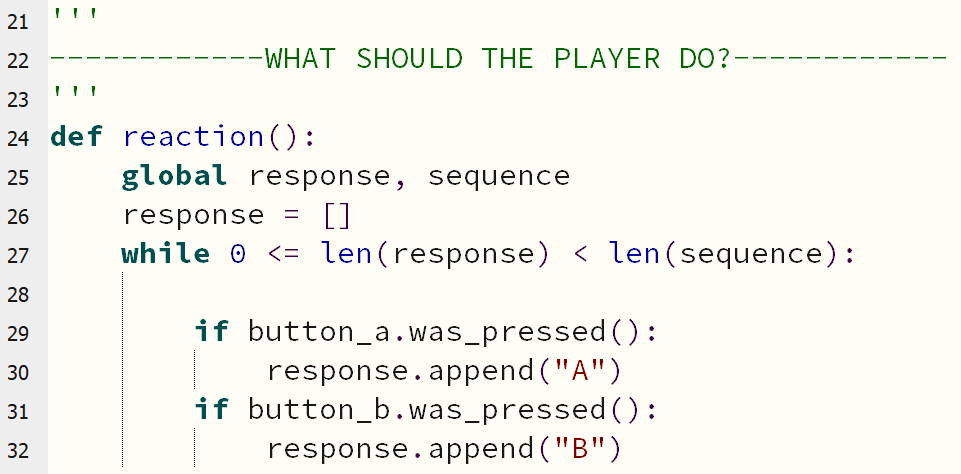
The last chunk of code within this section controls how the player adds responses during the game.
response.append("A") means that A is added to the list of player responses.
if button_a.was_pressed(), in this code, means that A will only be added to the list, if the player presses button A on the micro:bit.
You will need to expand this code for your extra options.
There are only two buttons on the micro:bit, which means you will have to use other features to make your game work!
Below is an example showing one more option added to the code - to add C to the list if the player shakes the micro:bit.
        if button_a.was_pressed():
            response.append("A")
        if button_b.was_pressed():
            response.append("B")
        if accelerometer.was_gesture("shake"):
            response.append("C")
There are lots of different accelerometer gestures you can use here!
'face up''face down''shake''up''down''left''right'How about adding an end-game sequence, to do something cool after your player loses the game?
Click here for some help!